

In Pokemon Pokopia, nothing hits quite like spotting the perfect item on someone else island and realizing you absolutely need it immediately. That’s where the 3D Printer comes in, a delightfully overpowered little machine that turns your inner collector into a full-blown gremlin. Instead of begging the shop rotation to cooperate or wandering aimlessly for hours, you can take matters into your own hands with a quick snap and a handful of resources.
It sounds almost too convenient, and honestly, it kind of is. Still, there are a few quirks and limitations to keep in mind. Before you start copying everything that is not nailed down, it helps to know how this system works.
How To Unlock The 3D Printer
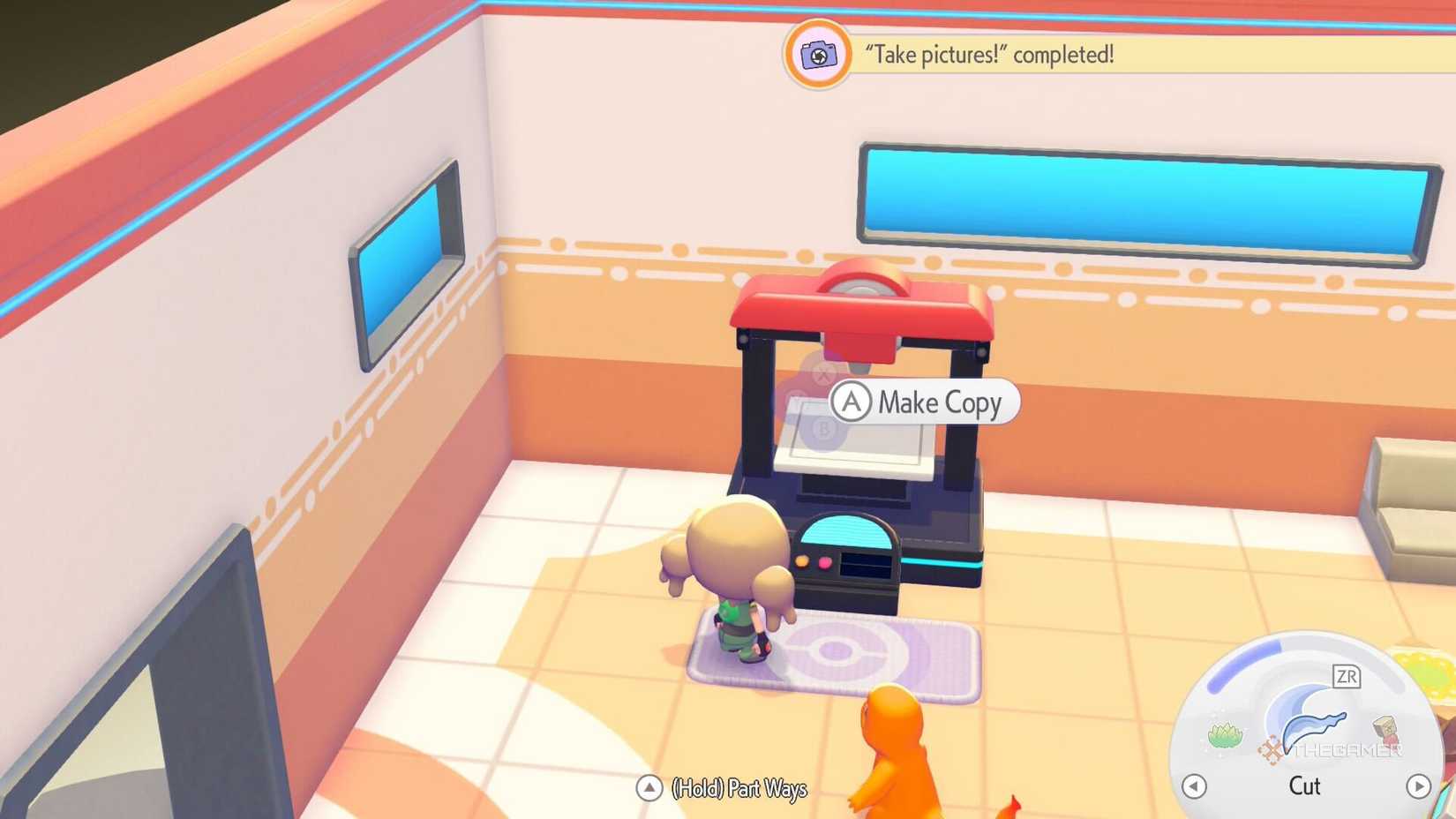
To unlock the 3D Printer, you first need to rebuild a Pokemon Center in the Withered Wasteland. This involves progressing through the area, freeing Onix, and completing the necessary habitat setup so it can help construct the building.
After the Pokemon Center is finished and the daily reset passes, the 3D Printer will appear inside on the left side ready to use.

Pokemon Pokopia: Best Way To Organize Storage
Struggling with clutter in Pokopia? Learn how to best organize your storage.
How To Use The 3D Printer

Using the 3D Printer requires two things: a reference photo and Pokemetal. To get a valid reference photo, open your camera using the minus button and switch from normal photo mode to item mode by pressing Y.
This toggle is important, as it allows the camera to recognize objects. When an item is correctly in focus, its name will appear on screen, confirming that it can be used as a reference. Take the photo, and it will be saved for later use. You can store up to 20 reference photos at a time, and previously used ones will be marked so you can keep track.

-
Once you have a reference photo, head to any Pokemon Center and interact with the 3D Printer. Select the image of the item you want to copy, review the material cost, and confirm your selection. After paying the required amount of Pokemetal, the item is created instantly with no wait time.
-
One of the most useful aspects of the 3D Printer is that it works with items found on other players islands. If a friend has something you want, you can simply take a photo of it and recreate it yourself. This makes it an excellent tool for collecting hard-to-find decorations or filling gaps in your collection without relying entirely on luck.

Pokemon Pokopia: How To Change The Weather
Here’s how to change the weather in Pokopia to either sunny or rainy.